With the release of iOS 18.4, Apple introduced a convenient Shortcuts action called Open Conversation, allowing iPhone users to instantly open a specific chat in the Messages app—directly from the Lock Screen. This time-saving feature is perfect for quick communication with loved ones or urgent business contacts.
In this guide, you’ll learn how to create a custom shortcut and place it on your Lock Screen for instant access to any Messages thread.
Why Use Open Conversation on the Lock Screen?
- Speed: Instantly access your most important chats
- Focus: Avoid getting distracted by other messages
- Convenience: Ideal for emergencies, family check-ins, or work updates
- Customization: Add the shortcut to the Lock Screen, Home Screen, or Control Center
Step 1: Create an Open Conversation Shortcut
To begin, you’ll need to build a shortcut for the specific Messages chat:
- Open the Shortcuts app on your iPhone.
- Tap the “+” button in the top-right corner.
- In the search bar, type “Open Conversation” and tap the result.
- Tap the blue “Conversation” text in the shortcut to select the contact or chat thread you want to open.
- Tap Done to save the shortcut.
This creates a direct link to the selected Messages conversation.
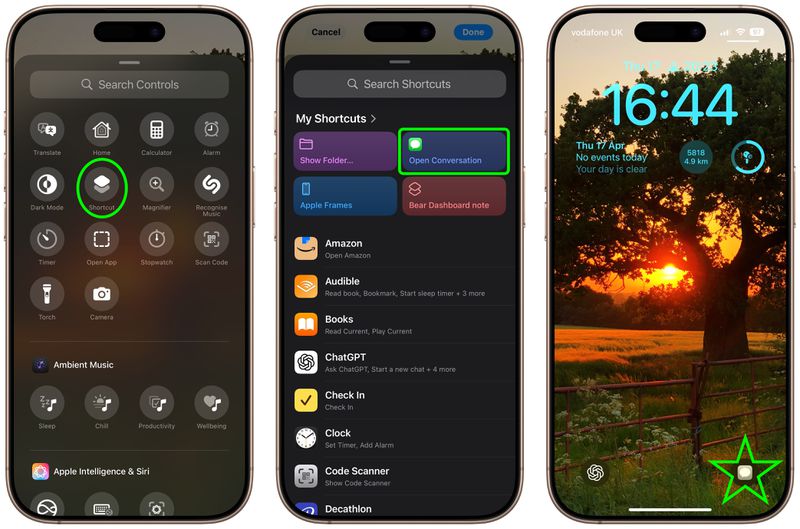
Step 2: Add the Shortcut to Your Lock Screen
Now, let’s place that shortcut right where you need it:
- Long press your current Lock Screen, then tap Customize.
- Tap the Lock Screen preview (not Home Screen).
- On the Lock Screen, tap the minus (-) symbol on one of the quick access buttons to remove it.
- Tap the plus (+) that appears to replace it.
- From the list, select Shortcut.
- Tap Choose, then select your Open Conversation shortcut.
- Tap Done to save your customized Lock Screen.
You now have one-tap access to your selected chat from the Lock Screen.
Bonus: Use Open Conversation Elsewhere
The Open Conversation shortcut is versatile. You can also:
- Add it to your Home Screen for fast access
- Pin it in the Control Center for swipe-down convenience
- Trigger it with Siri using a custom phrase
This gives you more ways to keep in touch without distractions or delays.
Conclusion
The new Open Messages chat from Lock Screen feature in iOS 18.4 makes messaging faster and more focused. Whether it’s staying in touch with family or jumping into a critical chat at work, this shortcut keeps you just one tap away. Set it up in minutes and streamline your iPhone communication like never before.