Your iPhone battery life can drop quickly, even when you’re not using your phone much. Although battery wear happens over time, certain iPhone settings can secretly drain power in the background. Instead of relying on Low Power Mode, you can extend battery life significantly by tweaking a few options in your settings.
Before buying a new phone, check your Battery Health (anything above 80% is still good). Then, deactivate these three power-hungry settings to keep your iPhone running longer throughout the day.
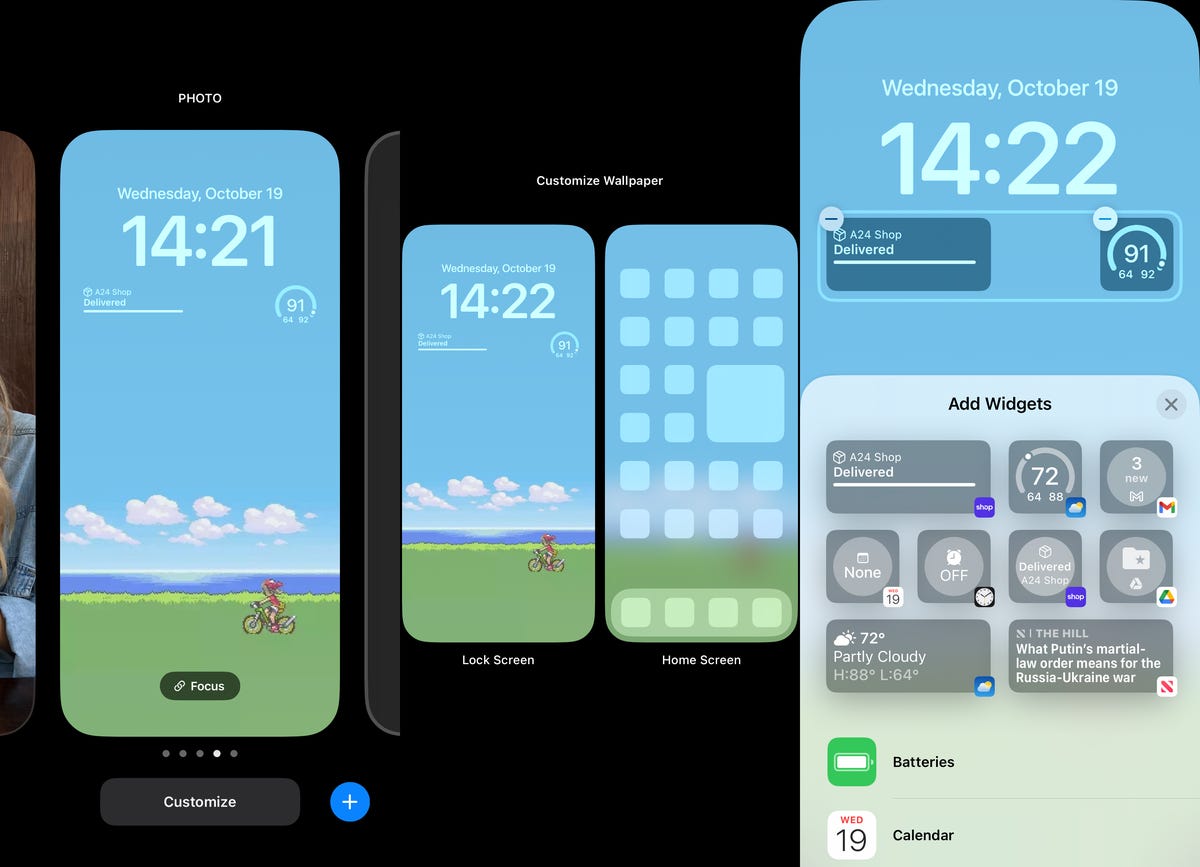
1. Turn Off Widgets on Your Lock Screen
Lock screen widgets look helpful, but they continuously refresh data — such as the weather, stock prices, or sports scores — even when you’re not using your phone. This constant background activity consumes battery faster than you might expect.
To improve your iPhone battery life, you can switch to a lock screen without widgets. Here’s how:
- Press and hold your lock screen.
- Swipe to choose a wallpaper that has no widgets.
Alternatively, you can remove widgets manually:
- Press and hold your lock screen.
- Tap Customize → Lock Screen.
- Tap the widget area and hit the “—” button next to each widget to remove it.
👉 Pro Tip: Avoid using widgets on both your lock and home screens if your goal is maximum battery efficiency.
2. Reduce Motion for a Simpler, Battery-Friendly UI
Apple’s animations make the iPhone experience smooth and visually appealing. However, they require extra processing power, which shortens your battery life.
You can make your iPhone’s interface simpler — and more energy-efficient — by reducing motion effects. To do this:

- Go to Settings → Accessibility → Motion.
- Toggle on Reduce Motion.
This setting minimizes animations like app transitions, the parallax effect, and Siri’s color bursts. As a result, your phone uses less graphics power and saves battery without affecting performance.
3. Turn Off Keyboard Haptics
Since iOS 16, Apple introduced keyboard haptic feedback — a slight vibration for each key you press. While it makes typing feel satisfying, Apple itself confirms it can drain battery life.
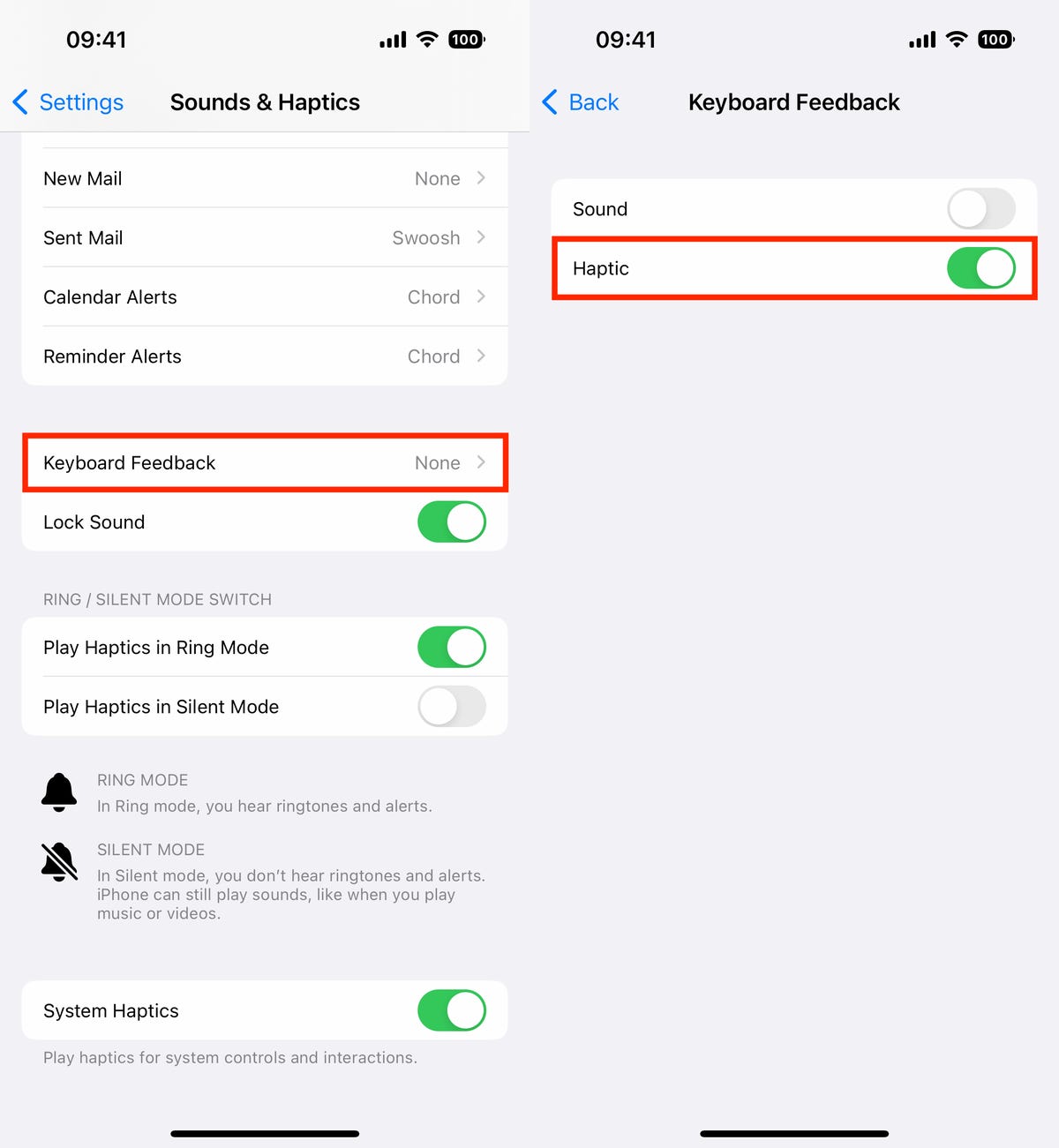
To turn it off:
- Go to Settings → Sounds & Haptics → Keyboard Feedback.
- Toggle off Haptic.
Although this feature is off by default, it’s worth checking in case you enabled it manually. Disabling it can help extend your iPhone’s daily battery performance, especially if you text often.
Extra Tip: Monitor Your Battery Usage
To track which apps or features are consuming the most power, go to Settings → Battery. You’ll see a detailed breakdown of battery usage by app. Turning off background refresh for heavy apps can help even more.
FAQs about iPhone Battery Life
Q1: How can I make my iPhone battery last longer every day?
Disable lock screen widgets, reduce motion, and turn off keyboard haptics. Also, keep screen brightness moderate and avoid extreme temperatures.
Q2: Does Low Power Mode really help?
Yes, but it limits certain features like background syncing. Turning off the three settings above gives you extra life without losing functionality.
Q3: Should I replace my battery or adjust settings?
If your battery health is below 80%, consider replacement. Otherwise, tweaking settings is usually enough to restore solid daily performance.
Q4: Does charging to 100% damage the battery?
Charging fully isn’t harmful occasionally, but keeping your iPhone between 20%–95% extends battery longevity.
Q5: Which iOS version has the best battery optimization?
iOS 18 and newer versions include improved battery management features, so updating your system can make a difference too.